

If your agency is helping manage your LinkedIn presence, they may need admin access to your LinkedIn Company Page.
This allows them to:
The easiest way to do this is by assigning your agency team members as Page admins directly within LinkedIn.
In this guide, we’ll walk you through how to safely add your agency as an admin on your LinkedIn Company Page.
Without the correct permissions, your agency won’t be able to:
Providing admin access allows your agency to manage your LinkedIn marketing without needing your personal LinkedIn password.
Most importantly, your business still remains the owner of the LinkedIn Page at all times.
Before adding an admin, make sure:
If you cannot see admin management settings, you may need a higher permission level from another Super Admin on the Page.
Navigate to your LinkedIn Company Page while logged into your LinkedIn account.
Make sure you are viewing the page as an admin.
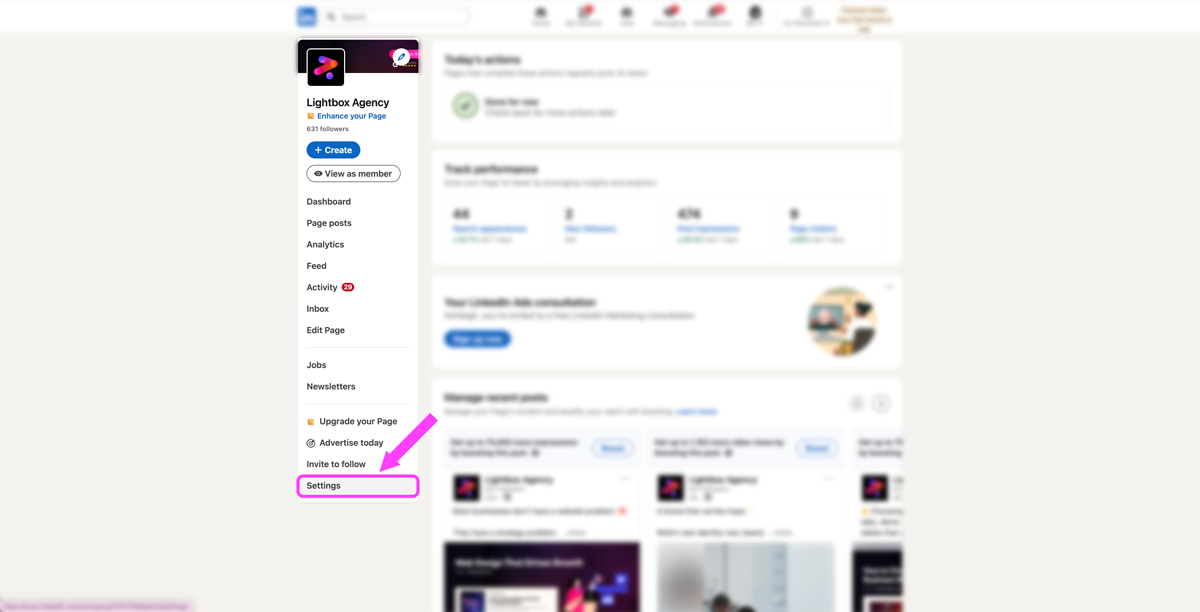
From the left-hand menu, click:
Settings
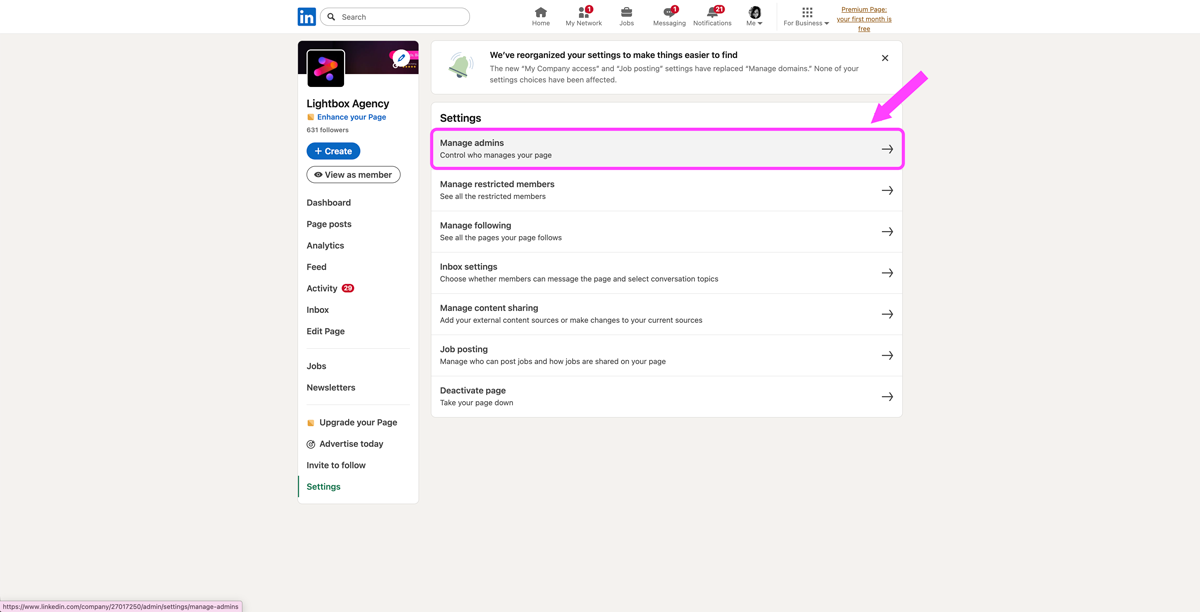
Then select:
Manage admins
This is where all Page permissions and admin roles are managed.
You’ll see two tabs:
Best for:
Best for:
Depending on the services your agency is providing, you may need one or both.
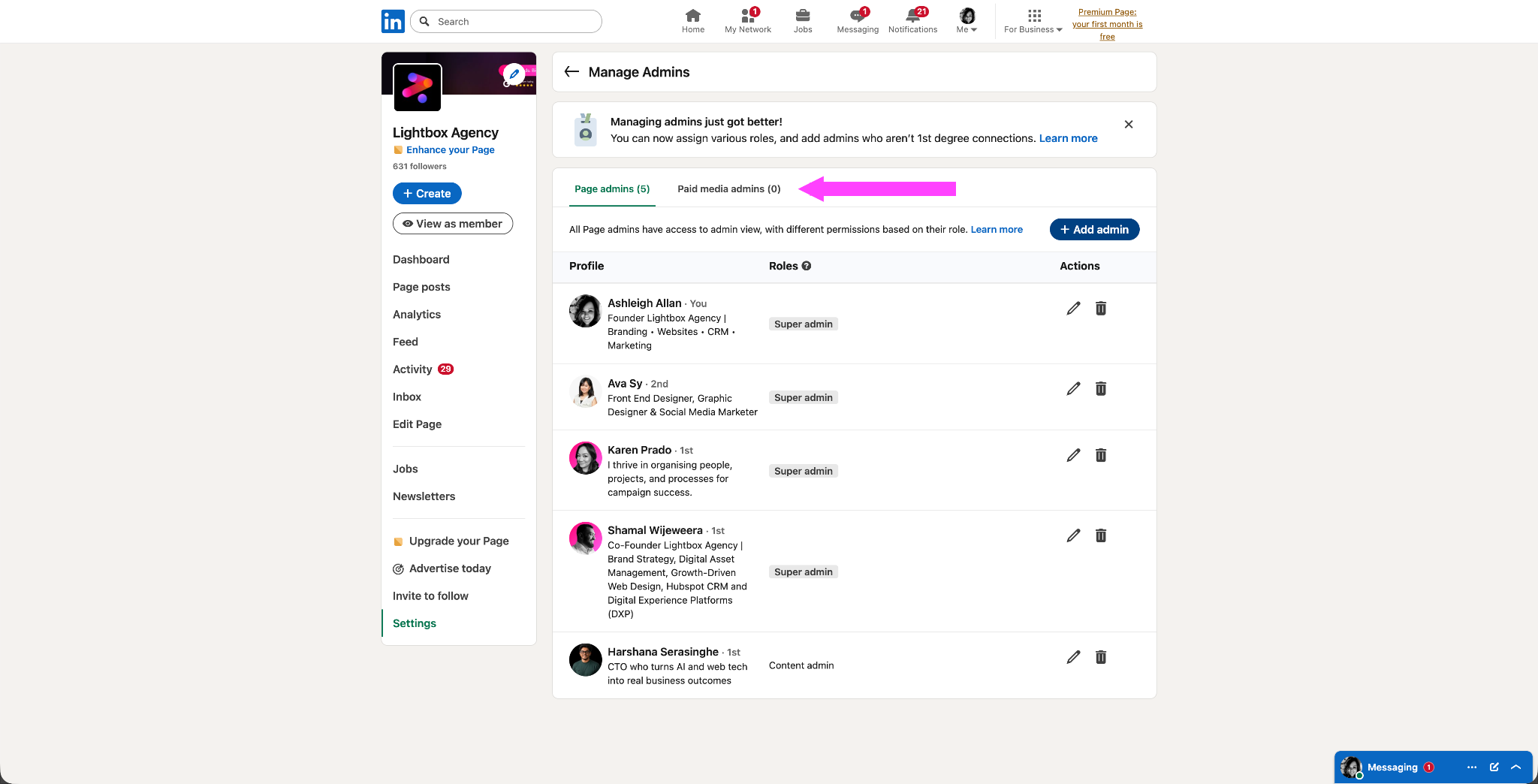
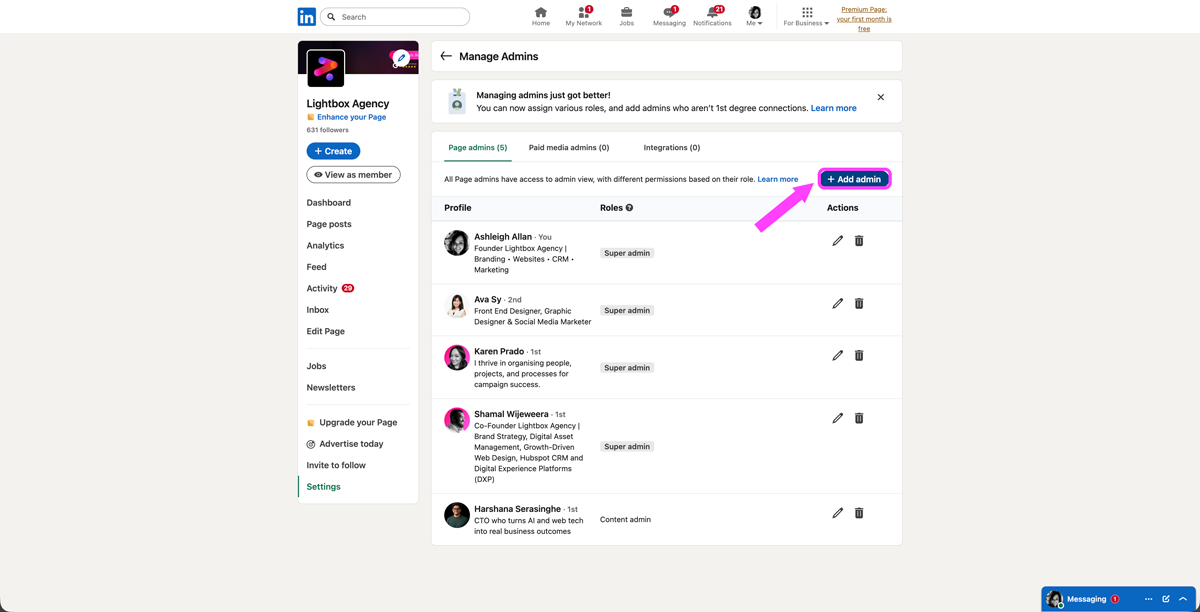
Click:
Add admin
If you do not see this button, you may not currently have the correct permission level.
Only Super Admins can add or manage Page admins.
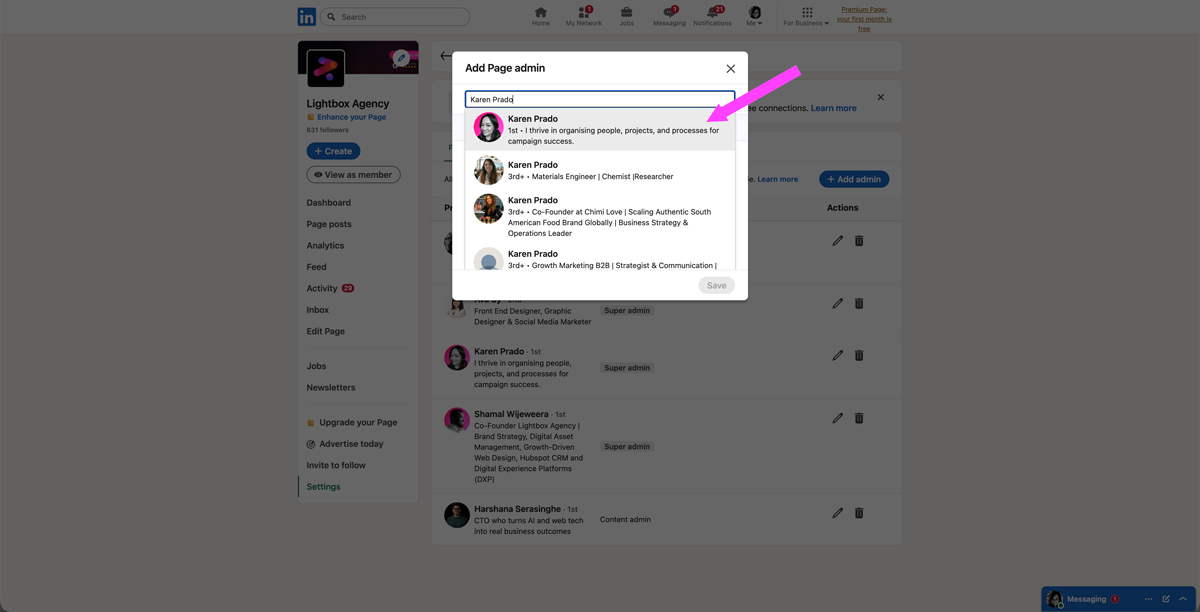
In the search field, enter the name of the person you would like to add.
LinkedIn will display matching profiles as you type.
Select the correct person from the list.
Choose the level of access you would like to assign.
LinkedIn offers different permission levels depending on the type of access required.
For most agency relationships:
Assign:
Best for:
Assign:
Best for:
Only one Page admin role can be assigned per person, however multiple Paid Media roles can be granted if needed.
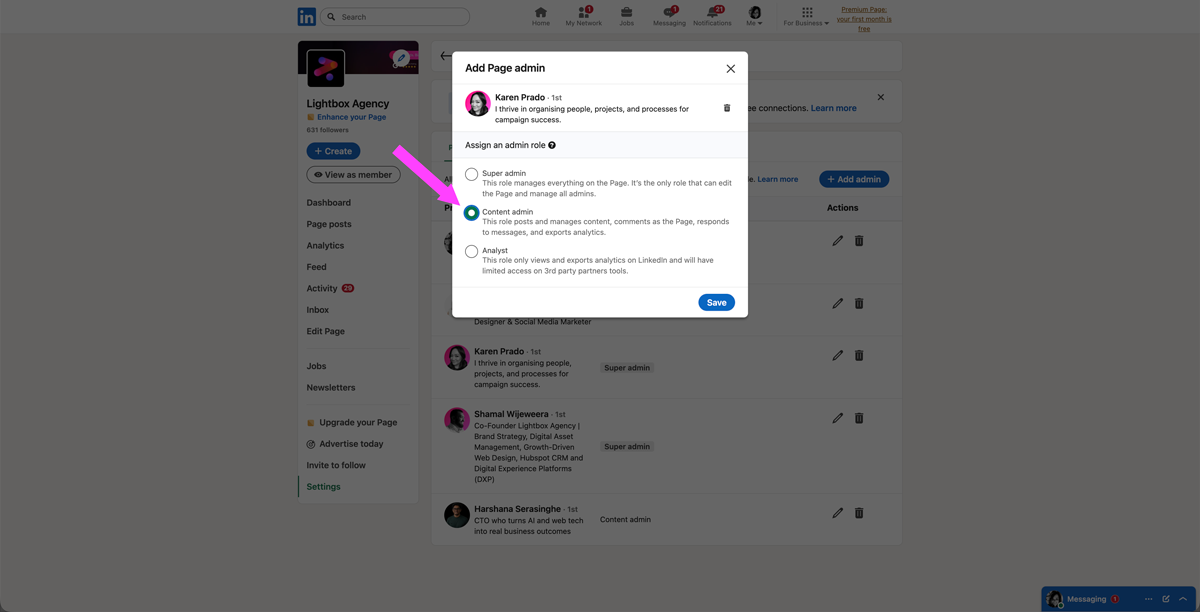
Once you’ve selected the correct role, click:
Save
Your agency team member will now receive access to your LinkedIn Page based on the permissions assigned.
Choosing the correct permission level is important for both security and workflow management.
Full control of the Page including admin management.
Recommended for:
Can create, edit and manage content.
Recommended for:
Can view analytics only.
Recommended for:
Can manage LinkedIn advertising activity.
Recommended for:
You likely do not have Super Admin access.
Another Super Admin will need to upgrade your permissions.
The person must:
Admins can be removed later through the Manage Admins section.
You can assign Paid Media Admin access only without giving broader Page management permissions.
No. Your business remains the owner of the Page at all times.
Your agency is only being granted access permissions.
Yes. Admin access can be updated or removed at any time.
Yes. LinkedIn admin permissions are significantly more secure than sharing personal login details.
This depends on the services your agency is managing.
For content management, Content Admin or Page Admin access is usually enough.
For paid advertising, Paid Media Admin access is typically required.
Giving your agency the correct level of LinkedIn access helps create a smoother, more secure and more professional working relationship.
It ensures your business maintains ownership while allowing your agency to properly manage content, advertising and reporting activities.
Once connected, collaboration becomes significantly easier and more efficient moving forward.
Our team can guide you through the process during onboarding to ensure your LinkedIn Page permissions are configured correctly and securely.
If you run into any issues during setup, feel free to contact the LBX Agency team for support.

Our Services


